
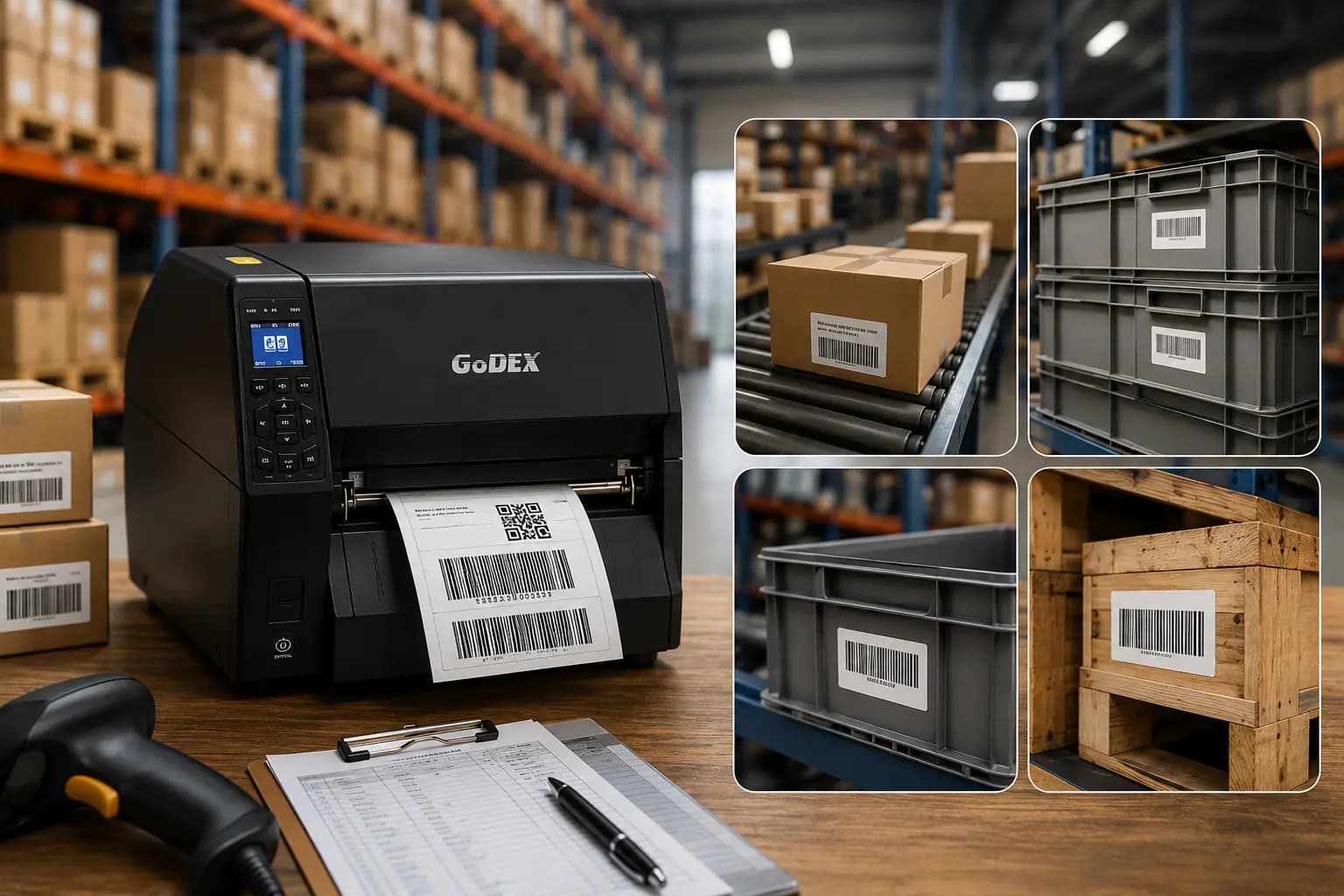
If you manage a warehouse or logistics floor, a label printer isn't a nice-to-have — it's the machine standing between "package shipped on time" and "line stopped because the printer jammed." Buying the wrong one means slow scans, constant service calls, and staff manually re-printing labels during peak hours.
This guide walks through exactly what to check before you buy a Godex label printer for warehouse or logistics use — no jargon, no sales pitch, just the criteria that actually matter on a working floor.
Why Warehouses Specifically Need Industrial-Grade Printers
Office printers and warehouse printers are not the same category of machine. A desktop label printer might handle 50 labels a day without issue — but put it on a receiving dock running three shifts, and it will fail within weeks. Warehouse environments bring dust, temperature swings, constant vibration from forklifts and conveyors, and continuous multi-hour print runs. A printer built for this environment needs a metal (not plastic) chassis, a print head rated for high duty cycles, and connectivity that survives a shared network without dropping jobs.
4 Things to Check Before You Buy
1. Print Resolution (DPI)
203 DPI is the standard for most shipping and inventory labels — it's sharp enough for standard barcodes on 4×6 labels.
300 DPI matters when labels carry small text, dense QR codes, or serial numbers that need to scan reliably from a distance.
600 DPI is really only necessary for compliance-heavy industries like pharma, where label detail is regulated.
Rule of thumb: if your team is squinting at labels or barcodes are failing first-scan, you're under-resolved.
2. Print Speed (Inches Per Second)
Warehouse throughput lives or dies on this number. A printer running below 4 inches per second (ips) will bottleneck a busy receiving station during peak season. Mid-to-high volume operations should look for 6 ips or above — that's the difference between a 4×6 label printing in under a second versus several seconds, multiplied across hundreds of packages a shift.
3. Direct Thermal vs. Thermal Transfer
This is the single biggest decision in the buying process, and everything else follows from it.
Direct thermal — no ribbon or ink required, cheaper to run, but labels fade over time (heat and sunlight exposure). Good for short-term labels like outbound shipping.
Thermal transfer — uses a ribbon, costs slightly more per label, but produces labels that survive months of handling, moisture, and abrasion. Better for asset tags, compliance labels, or anything that needs to stay legible long-term.
If your labels leave the building and don't come back (shipping labels), direct thermal is usually fine. If labels stay on inventory, bins, or assets for weeks or months, go thermal transfer.
4. Connectivity
A shared warehouse workstation needs more than a USB cable. At minimum, look for Ethernet so the printer can sit on the network and receive jobs from your WMS without being tethered to one PC. Wi-Fi and Bluetooth matter if your team is printing from mobile stations, loading docks, or roaming pick-and-pack carts rather than a fixed desk.
Matching Printer Class to Your Shift Volume
Instead of chasing a specific model number, match the printer class to how much you actually print:
Daily Volume Printer Class What to Prioritize
Under 100 labels/day Entry-level desktop Lower cost, USB is fine
100–500 labels/day Mid-range Ethernet, 203 DPI, decent duty cycle
500+ labels/day Industrial Metal chassis, 6+ ips, Ethernet standard, high duty cycle rating
Mobile/roaming stations Portable Bluetooth, compact width (2–3 inch)
Godex's lineup spans all four of these tiers, from compact desktop units up to heavy-duty wide-format industrial printers. Because exact model names and specs get updated as new versions release, always cross-check the current model number and duty-cycle rating against Godex's official spec sheet before you commit — don't buy off a number you saw in an old blog post (including this one).
Command Language Compatibility Matters More Than People Realize
Most modern Warehouse Management Systems (WMS) expect ZPL-compatible or similar standard command sets. Before buying, confirm the printer supports the command language your WMS already speaks — otherwise you're looking at custom driver work or IT overhead just to get labels printing correctly.
Common Mistakes That Lead to Buyer's Regret
> Buying on price alone. A cheap desktop printer at warehouse volume will cost more in service calls and downtime than the price difference to an industrial model.
> Ignoring duty cycle. A printer's "max speed" spec means little if it can't sustain that speed for a full shift without overheating or jamming.
> Skipping the network check. If your team is printing from multiple stations, USB-only printers create a bottleneck that Ethernet or Wi-Fi solves immediately.
> Overbuying for light use. If you're printing under 100 labels a day, an industrial 600 DPI printer is unnecessary cost — match the class to actual volume.
FAQs
Q1.How many labels per day justifies an industrial-grade printer?
Generally, once you're consistently printing 500+ labels per shift, the higher duty cycle and metal build of an industrial printer pays for itself in reduced downtime.
Q2. Do I need thermal transfer for shipping labels?
Usually not — direct thermal is standard for outbound shipping labels since they don't need to survive long-term. Thermal transfer is worth it for labels that stay on inventory or assets for extended periods.
Q3.What DPI do I need for barcode scanning?
203 DPI is sufficient for standard 1D barcodes on 4×6 labels. Step up to 300 DPI if labels include small text, dense 2D codes, or need to scan reliably from a distance.
Q4. Can one printer handle both shipping and internal compliance labels?
Yes — mid-to-high-tier models that support both direct thermal and thermal transfer, at 300 DPI, are commonly used for exactly this dual purpose.